Best Practices
We’d like to give you some advice for workarounds you might want to use for frequently used cases.
Dynamic Color
When you want to control a color value inside your graphic template, you will need to create a dynamic textlayer that receives the color input.
The playoutsystem will write whatever color you choose into that textlayer.
You will then need to process that color data with a little expression to be used inside a typical After Effects color attribute.
The color picker from the OGraf Graphics Data Type Definition places a hexcode inside your dynamic text layer, formated like this:
#3399cc
Your expression inside the color attribute has to get rid of the #, split the code into it's inidvidual colorchannels and convert from hexadecimal to a decimal number After Effects needs. Your Expression for that will look something like this.
hex = thisComp.layer("_colorInput").text.sourceText;

// remove #

clean = hex.replace("#", "");

// convert each pair to decimal (0–255)

red   = parseInt(clean.substring(0, 2), 16) / 255;
green = parseInt(clean.substring(2, 4), 16) / 255;
blue  = parseInt(clean.substring(4, 6), 16) / 255;
[red,green,blue,1]
Using Gradients
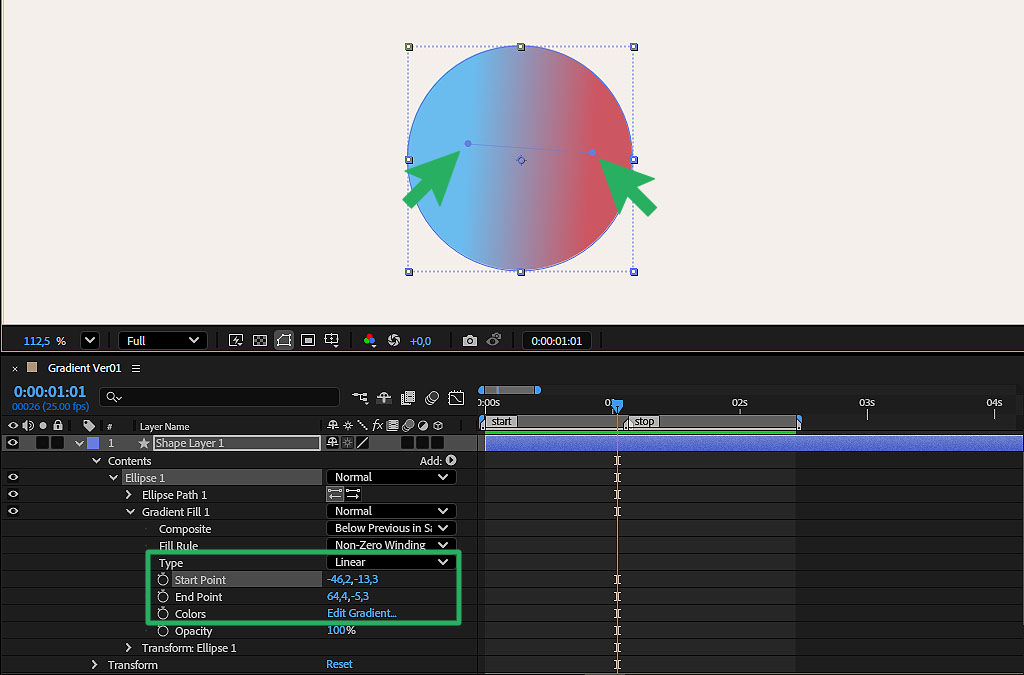
To make your gradient appear as expected after export, you will need to use the start and stop points to set the gadient area. There are ways to for example rotate your gradient, but we do not recommend these and they might be ignored in the export.
Dropshadow
The dropshadow effect may work, but create harsh cut off lines on the edges of textlayers. Instead of using the effect "Dropshadow", we recommend duplicating your textlayer, changing the fontcolor to the desired shadowcolor (usualy black), placing the duplicated layer underneath the original textlayer and applying a gaussian blur effect to this shadow layer. If your original text is a dynamic text element, do not forget to reference its "text.sourcetext" value in the shadows sourcetext attribute.
Accurate Preview for 3D Layers
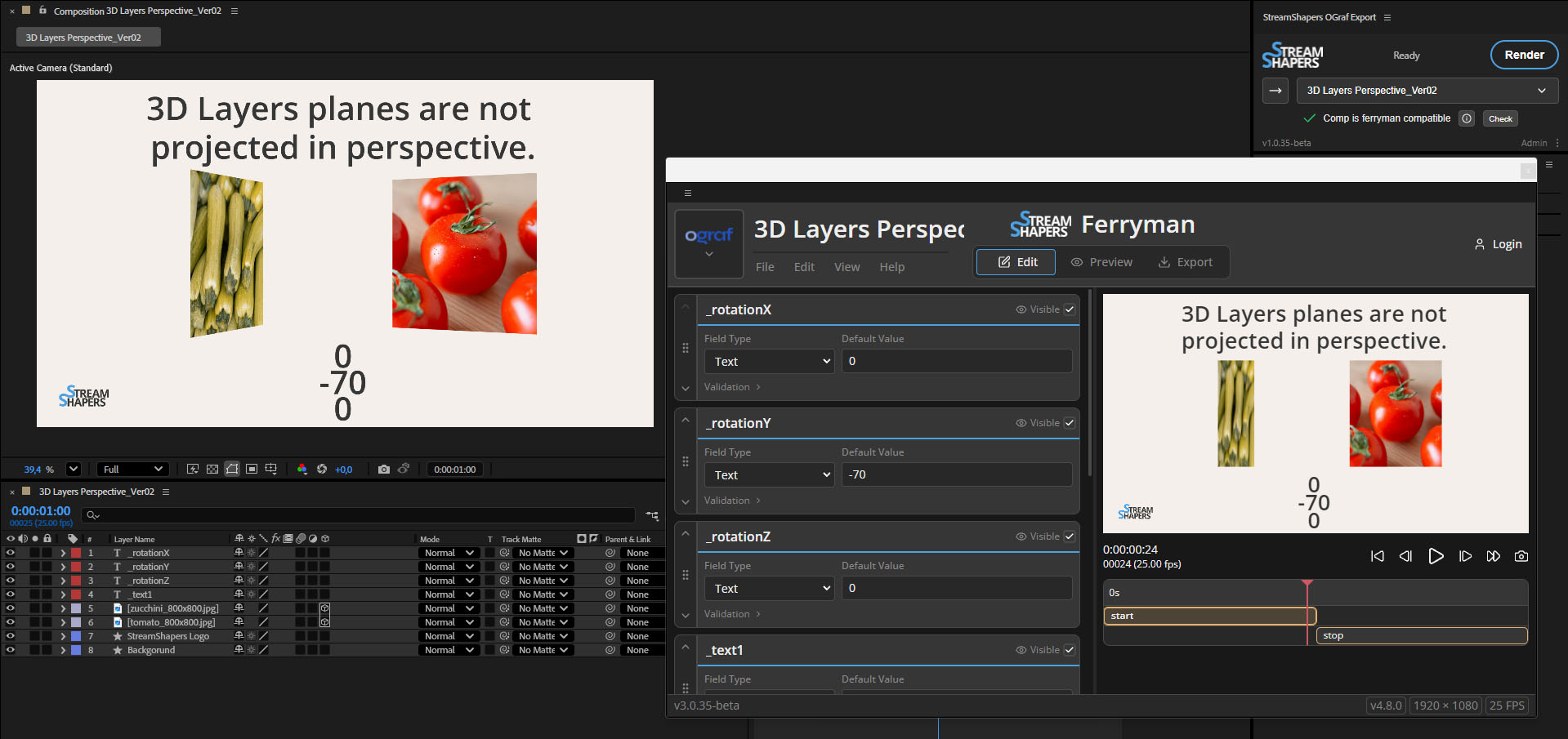
In After Effects 3D layers are rendered in perspective view by default. After Export, the perspective will be orthographic (without perspective distortion). The perspective in After Effects can be manipulated by a camera. For preview purposes only, you can create a camera with a really high zoom factor (something like 1000000), and a corresponding position (something like z = -1000000). This makes your preview almost orthographic instead of perspective. Keep in mind to delete your camera layer prior to export, as it is not supported.
Automatically growing Textbox
SourceRectAtTime is an expression in After Effects that gives you the width and height of a text layer, and it also works when you export your template with our StreamShapers Export Extension. This way you can make a rectangle have automatically the size of whatever text it should follow.
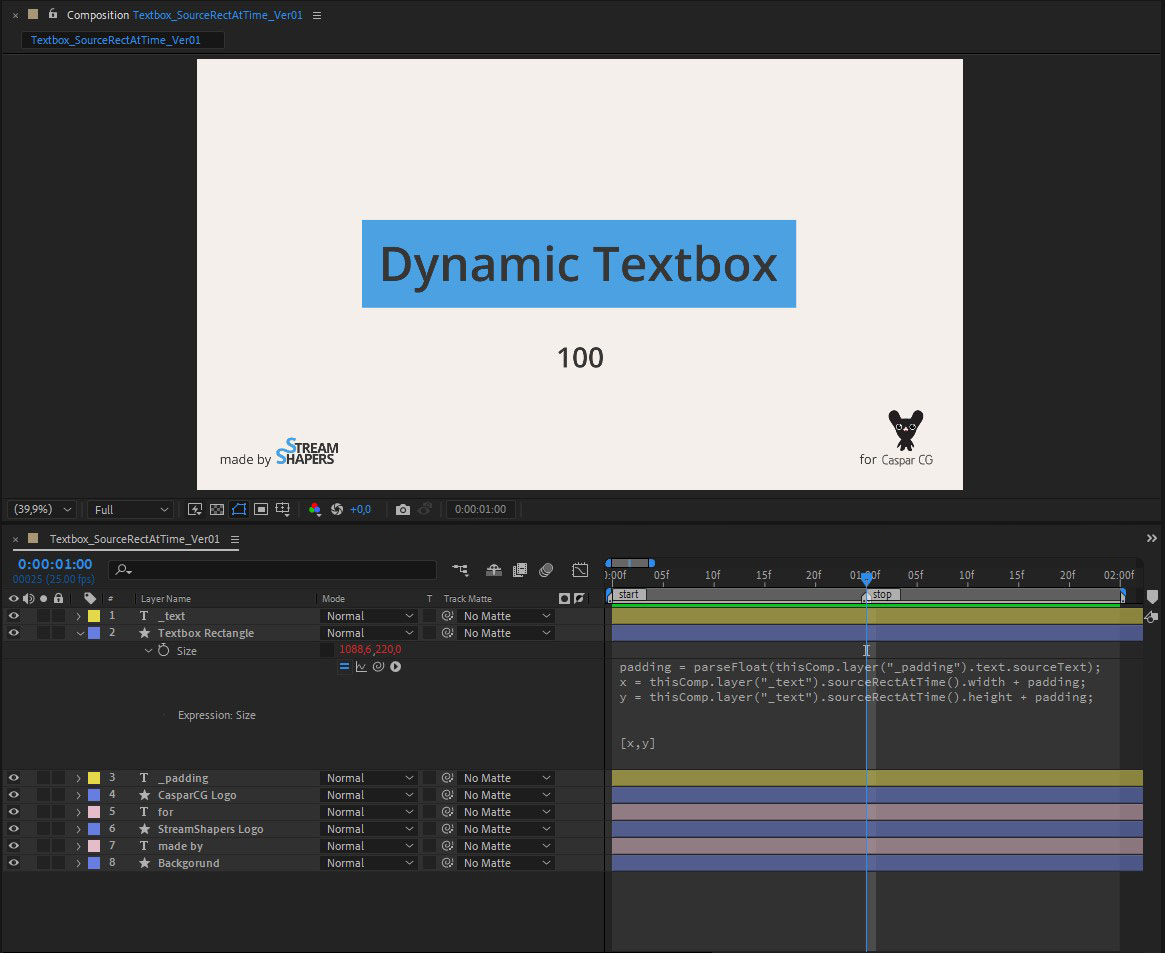
The complete expression you can see on the screenshot is:
padding = parseFloat(thisComp.layer("_padding").text.sourceText);
x = thisComp.layer("_text").sourceRectAtTime().width + padding;
y = thisComp.layer("_text").sourceRectAtTime().height + padding;

[x,y]
It also takes a padding and adds it, so that the text has some space to breathe. In side by side comparison, we could see, that the texts size must be evaluated in another way than it is in After Effects, you should at least keep that in mind and try if your box really depends on it.
Precomps/Subcomps/Nested compositions
Precomps are supported. All the dynamic textlayers within nested comps will be recognized. If you duplicate a nested comp in your main composition, you will have a duplicate and when there are dynamic textlaers within this subcomp it will naturaly be recognised. As dynamic textlayers that are named identical will be filled with the same value they will behave the same. Keep that in mind and use it as a feature. If you do not want that duplicate your subcomp in the project panel and change the names of dynamic textlayers to use them independently from each other.
Expressions with different languages
When working with After Effects on different machines using different languages, you will most certainly encounter issues if you have Slider Controls referenced in Expressions: "Error: propert or method named 'Schieberegler' in Class 'Group' is missign or does not exist. It may have been renamed, moved, deleted, or the name may have been mistyped" -> This occurs when creating an expression in german After Effects and then opening it with an english After Effects.
You have to change 'Schieberegler' to 'Slider' inside your expression or use the effects index instead of the language dependent name.